While I was studying for my degree, I was taking a course in IT forensics. At the time, an employee of the company I was working for had been subjected to an email bomb attack. We knew who did it, we know they used a service on the web to employ it, but we didn’t have the proof we needed. Temporary files like Chrome’s history database wasn’t being backed up then, and we didn’t have the proof we needed. Since I needed to conduct my own research project for this forensics course, I decided to take a look into what I could find with Google Chrome.
As it turns out, Chrome is pretty locked down for the most part, there are a lot of updates for Google Chrome, and for good reason. Last year (2024), there were 104 patched exploits for Chrome, equivalent to a new exploit every 3-4 days. Trying to get anything useful out of the memory that Chrome uses is a far more daunting task than I originally anticipated. Then I pivoted to look at the Chrome extensions I had installed: I thought I probably wouldn’t find anything incredibly useful from an adblock, but the password manager deserved its own investigation.
As it turns out, if you use the Chrome extension of a password manager (confirmed on LastPass, NordPass, and Bitwarden), once you enter your Master Password to unlock your password manager, all of your credentials, credit card info, TOTP seeds, and really anything you have stored in there, is entirely available as plain text in live memory. In one case, the master password itself is recoverable, allowing an attacker to gather all the passwords again without needing access to the computer. If you have access to an elevated terminal (which an IT administrator would easily have access to), it’s really not that difficult to get this information off a computer in use.
Here’s an example of the extracted username and password of an Outlook account gathered from the running memory of Chrome using the LastPass Chrome extension:
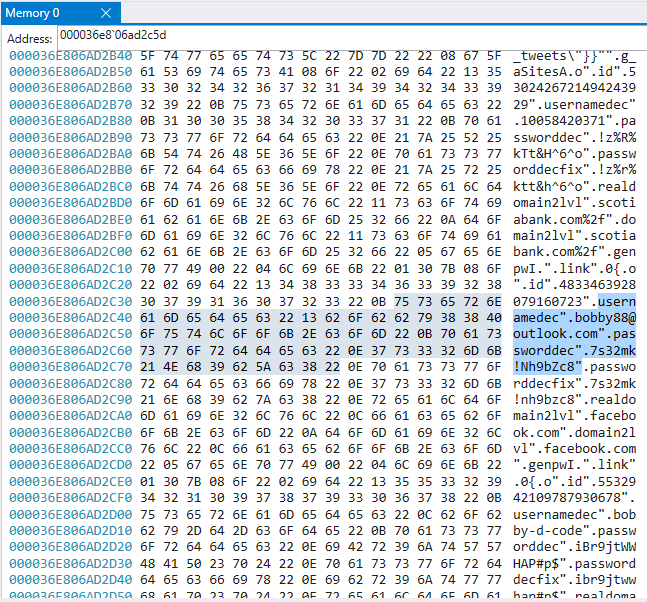
The step-by-step of how you can try this yourself from start to finish can be found on this repo on my GitHub page.
Here are the 2 methods I found to prevent passwords being stored in plain text:
- Keeping the password manager locked.
While the password manager is locked, the passwords are not stored as plain text in memory. While it’s annoying to have to unlock your password manager every time you want to login to a website or service, it’s the easiest way to ensure that your data is not sitting in your live memory unencrypted. - Using the “Re-prompt Master Password” for important items.
Password managers typically have an option for each item to request that your master password be entered every time you want to access that item. Not only does this help with keeping your passwords private on shared computers, but it also keeps them encrypted in memory! Only once you enter the master password again and are currently viewing the item will the unencrypted text be stored in memory.
While an attacker would already need elevated access to a computer to be able to take advantage of passwords in memory, the implications are still severe. Once a computer has been compromised, it’s very important to prevent lateral movement. Having a dump of all the usernames and passwords the user of a compromised computer has access to, is an easy way to move laterally accross the network and attack the other services an organization relies upon. Being able to prevent this could allow you a few more precious minutes to isolate a computer and prevent any further damage from being done.
So what do you think about the use of password manager Chrome extensions? Would you modify your current set of IT policies to prevent gathering plain text passwords, or keep it as a backdoor option should you need it?
 Cavan McLellan